

Initiating a signing process
The Home page is the process‑creation form. The top navigation bar gives access to every area of the portal.
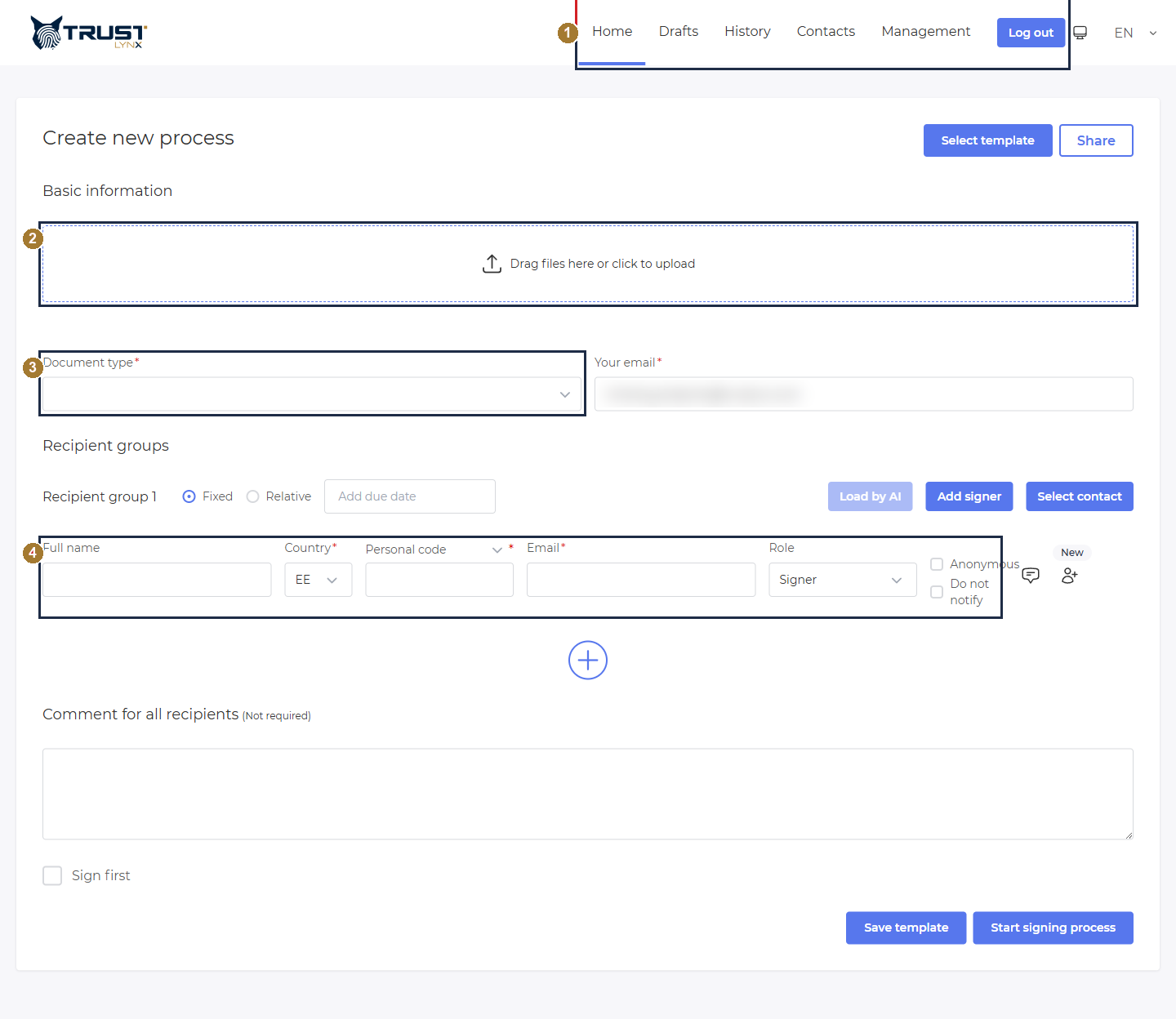
The Home page doubles as the “Create new process” form.
- Navigation bar - Home (create a process), Drafts, History, Contacts, Management, and Log out.
- Upload area - drag a file here or click to choose one.
- Document type - the document profile (required).
- Recipient group 1 - where you add the people who must sign.
Upload the document
Section titled “Upload the document”Click the upload area (“Drag files here or click to upload”) and pick a PDF (or other supported file). After upload, SignBox adds the container settings:
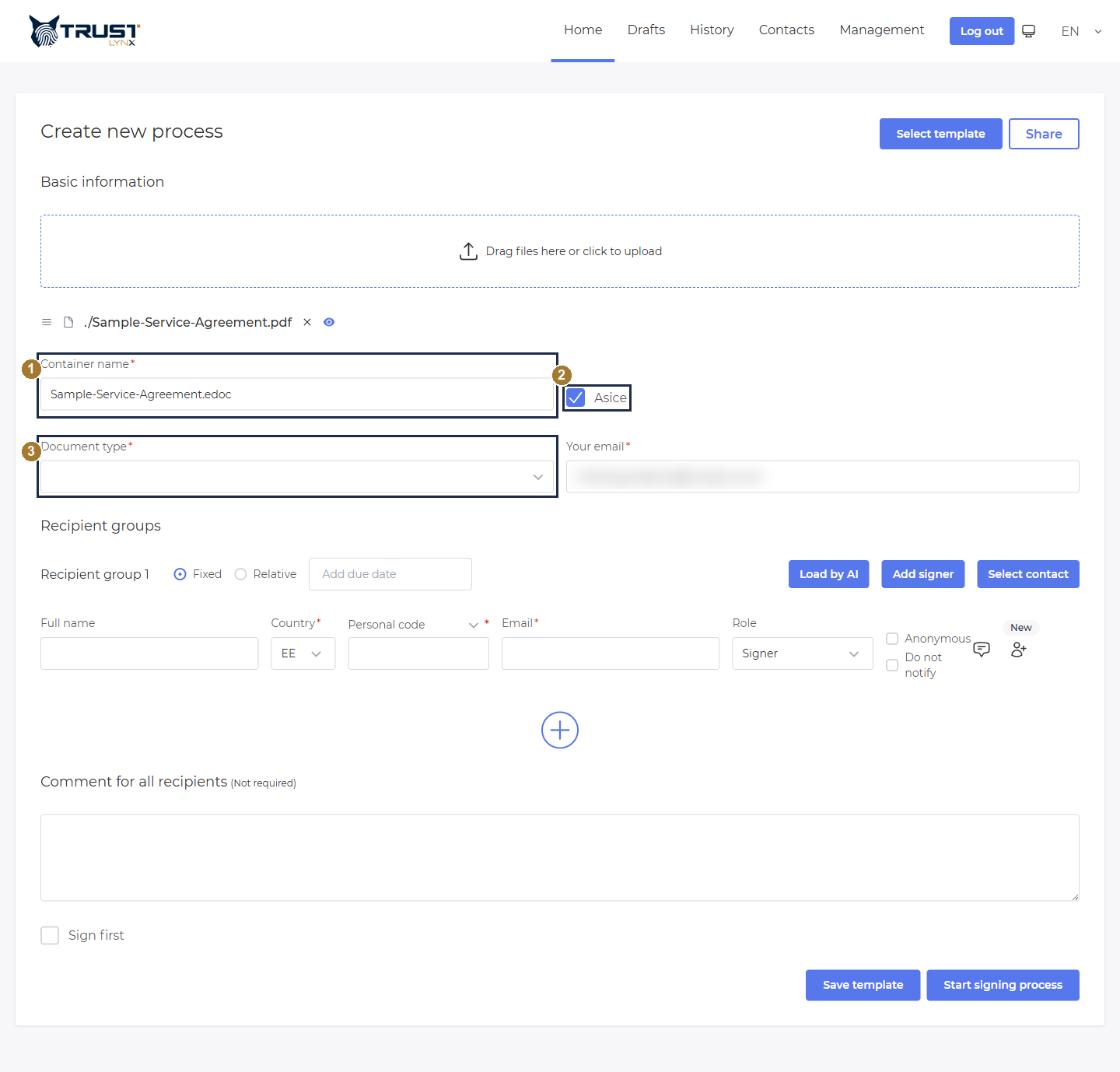
After uploading, the container name and format appear.
- Container name - auto‑filled from the file name; it becomes the signed
.edoccontainer name. You can rename it. - Asice - the container format (ASiC‑E). Leave it ticked unless told otherwise.
- Document type - still required; choose it next.
Choose the document type
Section titled “Choose the document type”Click the Document type field to open the list of available document profiles and pick one (for example Customer contract).
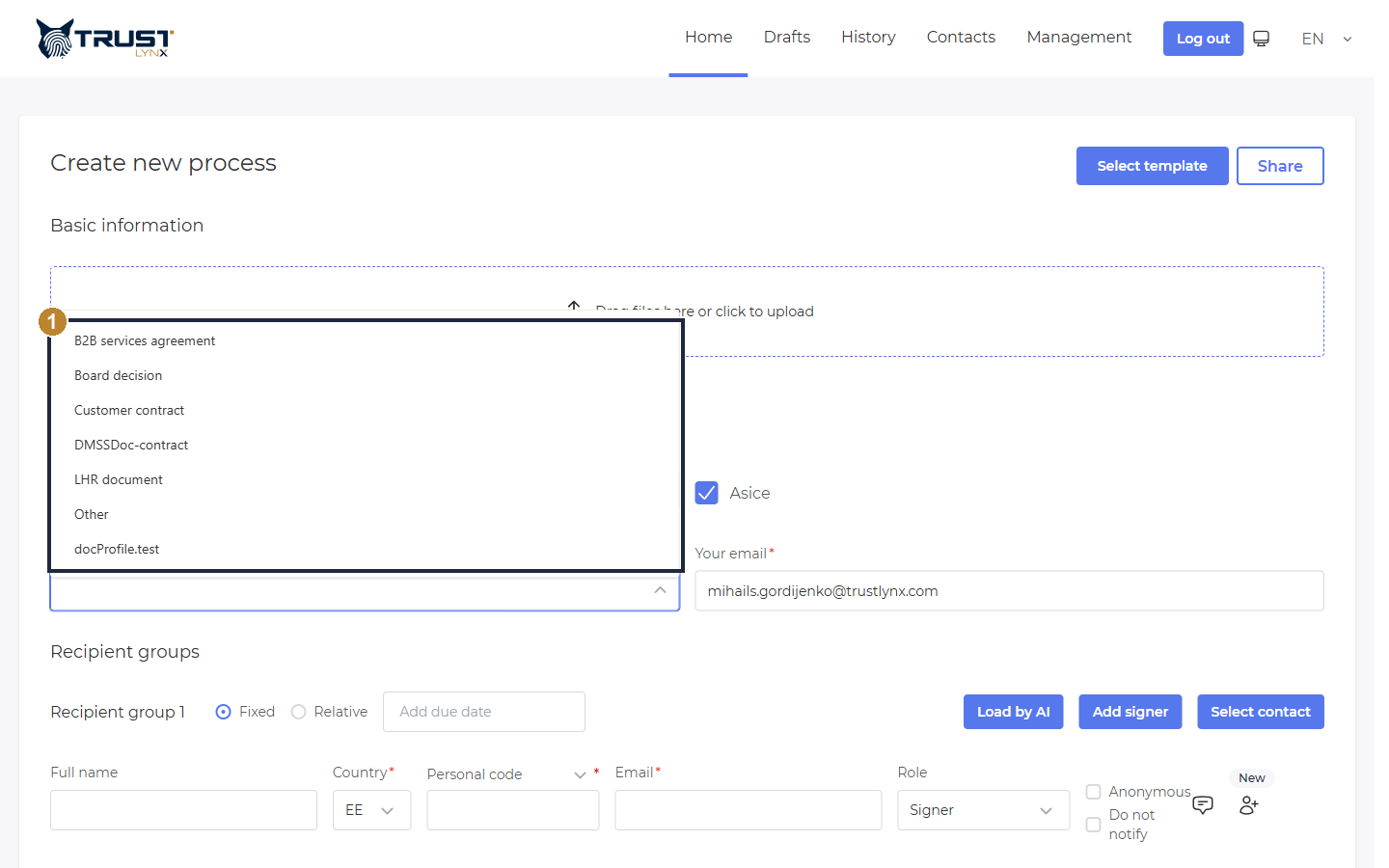
Choose a document type (profile). The list is managed under Management → Document profiles.
- The available document types - e.g. B2B services agreement, Board decision, Customer contract, DMSSDoc‑contract, LHR document, Other.
Add recipients (signers)
Section titled “Add recipients (signers)”Each process has at least one Recipient group. Fill in the first recipient’s details. For a Signer identified by personal code you provide: Full name, Country, Personal code, Email and Role.
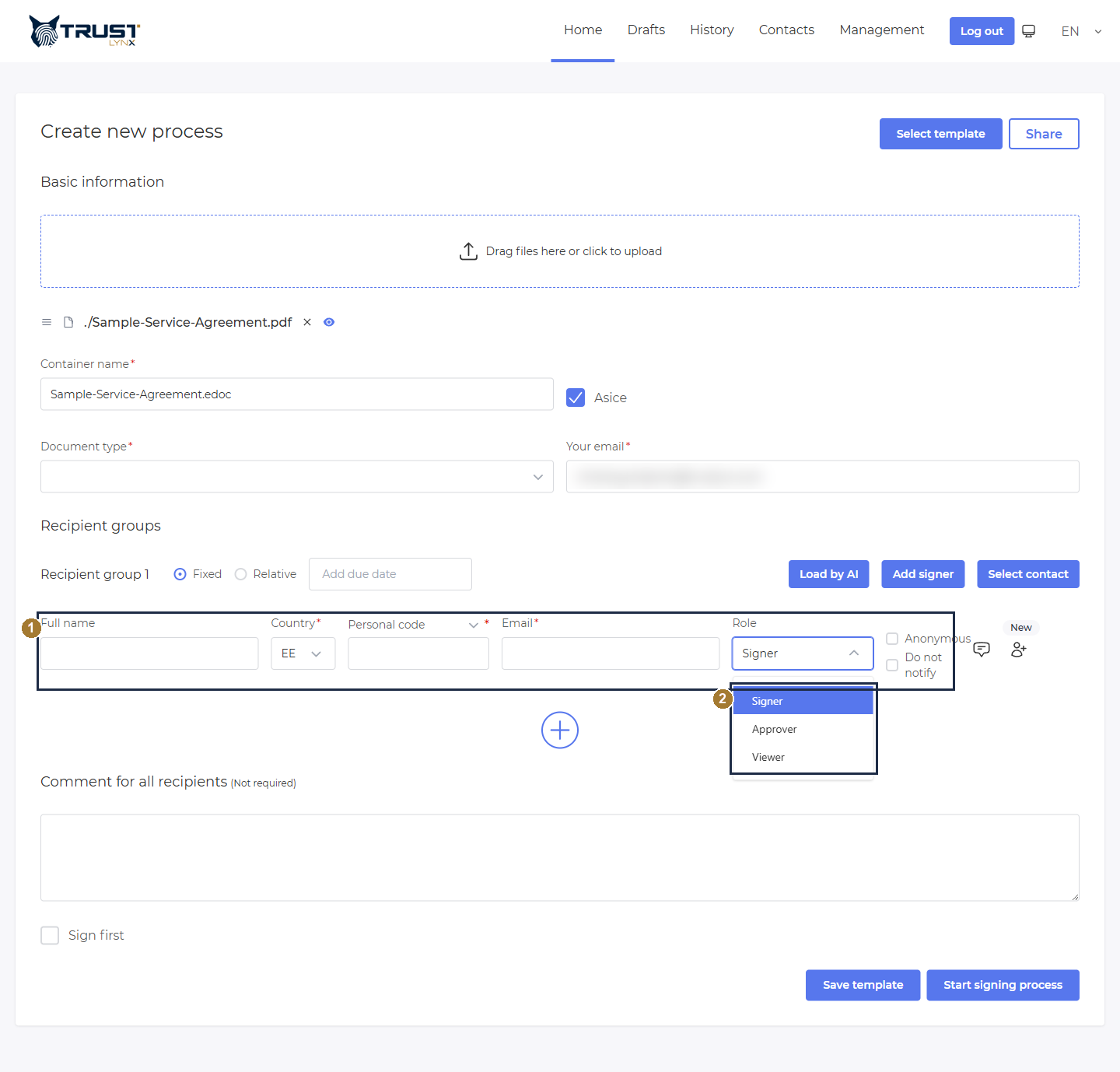
Fill in the recipient and pick their role.
- Recipient fields - Full name, Country (EE / LV / LT / PL), the identifier, Email and Role.
- Role - Signer (signs the document), Approver (approves it without signing) or Viewer (can only view it).
The Email is always required. It is the address the signing invitation is sent to.
Roles, identifier and notifications
Section titled “Roles, identifier and notifications”The recipient can be identified by Personal code or by Phone number (e.g. for Mobile‑ID). Use the small dropdown next to the identifier field to switch between them.
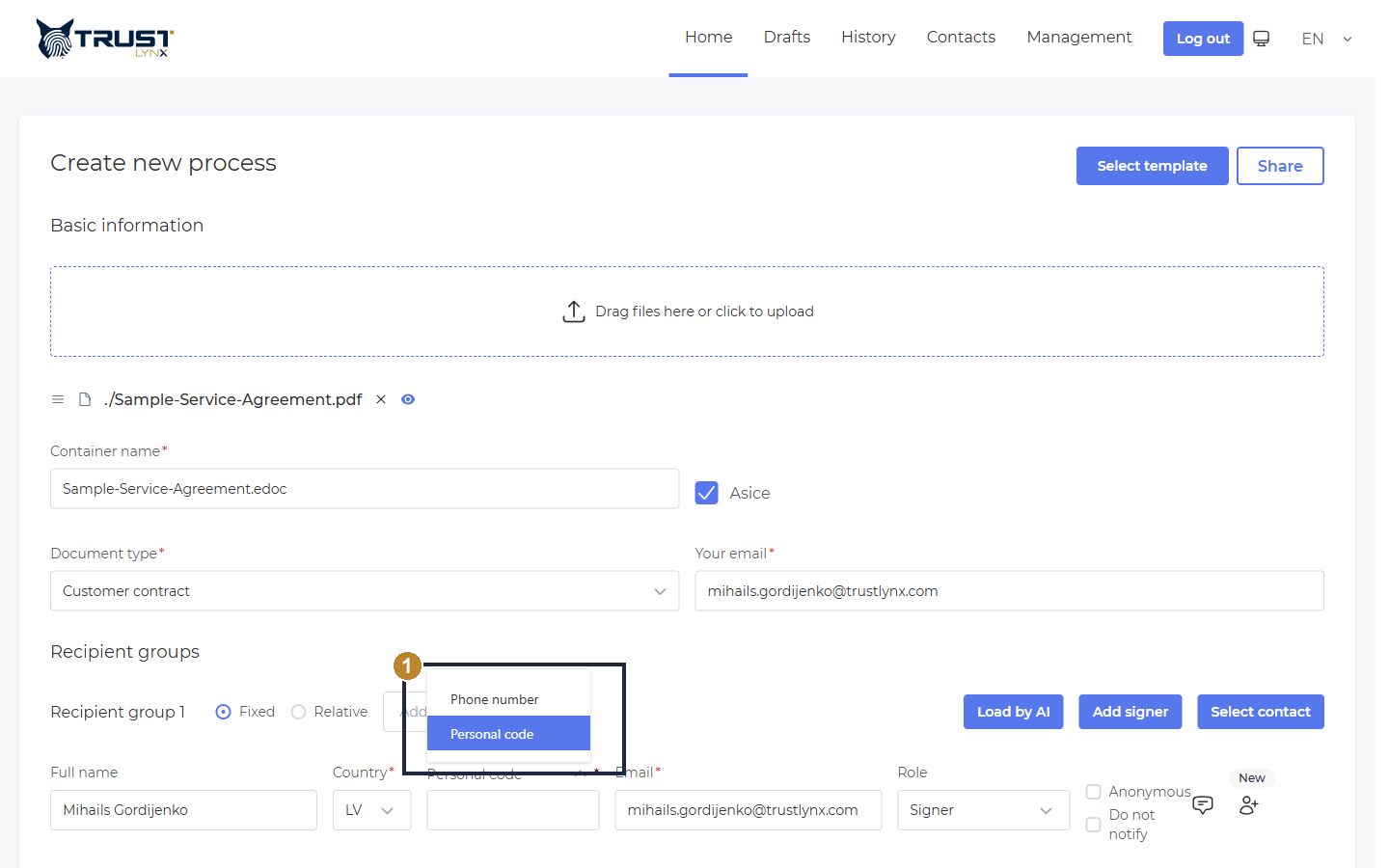
Choose how the recipient is identified - by Personal code or Phone number.
- Identifier type - Personal code (for Smart‑ID / ID‑card) or Phone number (for Mobile‑ID).
Two per‑recipient switches sit at the end of the row:
- Anonymous - see 4.5.
- Do not notify - when ticked, SignBox does not send this recipient an email invitation (use it when you will share the link another way).
Anonymous signing (in depth)
Section titled “Anonymous signing (in depth)”The Anonymous toggle (tooltip “Share Document Anonymously”) lets you invite a signer without binding them to a specific personal code in advance. When you turn it on, the Country and Personal code fields disappear from the recipient row:
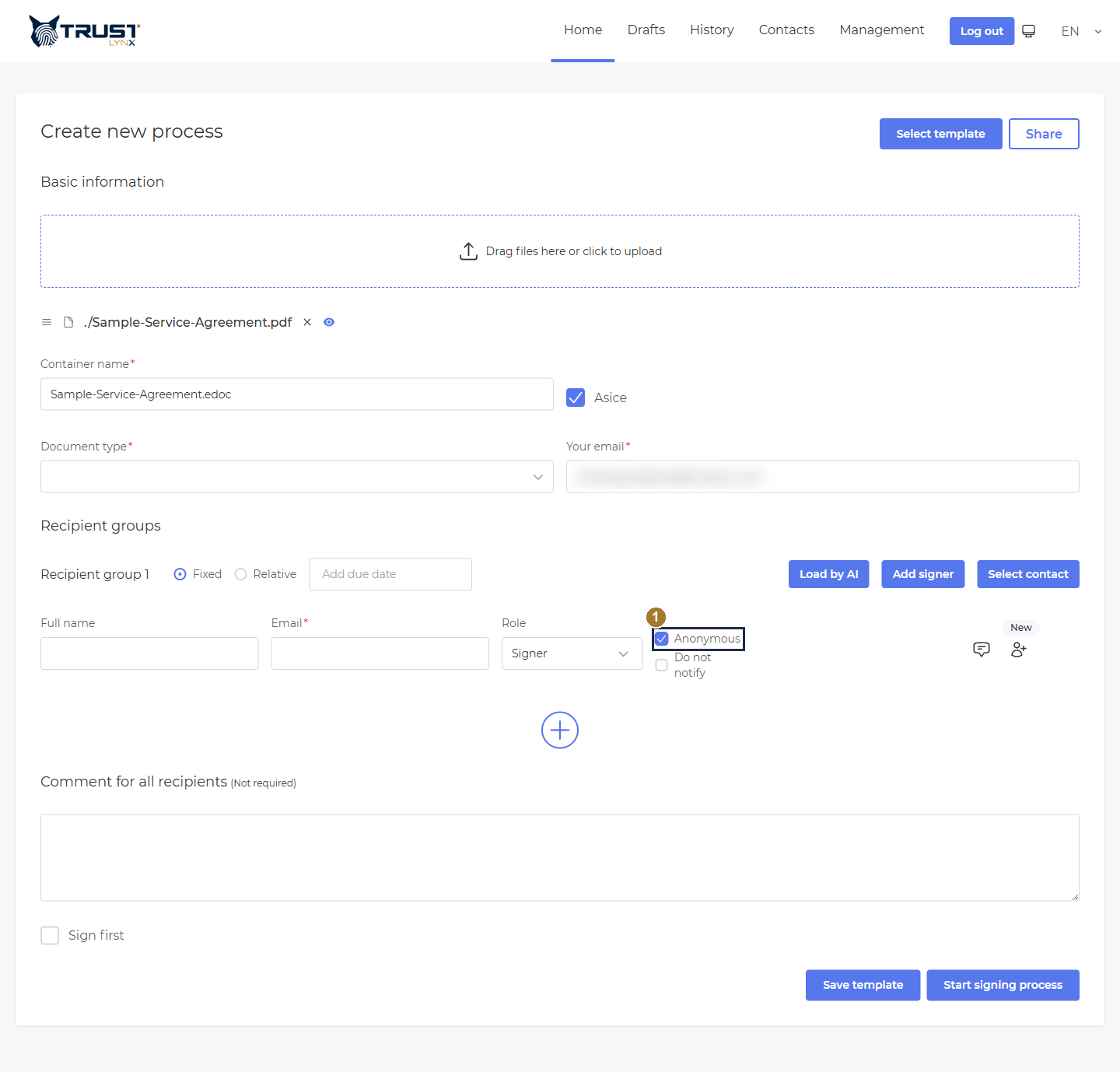
With Anonymous on, no identity (country / personal code) is required up‑front.
- Anonymous ticked - only Full name, Email and Role remain.
What it means:
- No identity pre‑check. You do not have to know the signer’s personal code. The signer’s real identity is captured at signing time from whatever Smart‑ID / eID they authenticate with on the external portal.
- Who can sign. Anyone who opens the signing link can authenticate and sign; their captured identity is recorded in the signature.
- Use it when you don’t have (or don’t want to enter) the signer’s personal code, or for “sign by link” scenarios.
- Behaviour note. Because an anonymous recipient is not matched to a named slot, the process can still show Started (0/1) in History even after a valid signature has been added to the container - the signature is cryptographically valid, but the workflow slot is not auto‑closed. For strict completion tracking, use a named recipient (with personal code) instead.
Several signers & sequential signing (recipient groups)
Section titled “Several signers & sequential signing (recipient groups)”- Several signers at the same time (parallel): click Add signer inside a group to add another recipient to that group. Everyone in the same group can sign in any order, in parallel.
- Sequential signing (one after another): click the + below a group to add another recipient group. Group 2 is only invited after Group 1 has completed. This enforces a signing order.
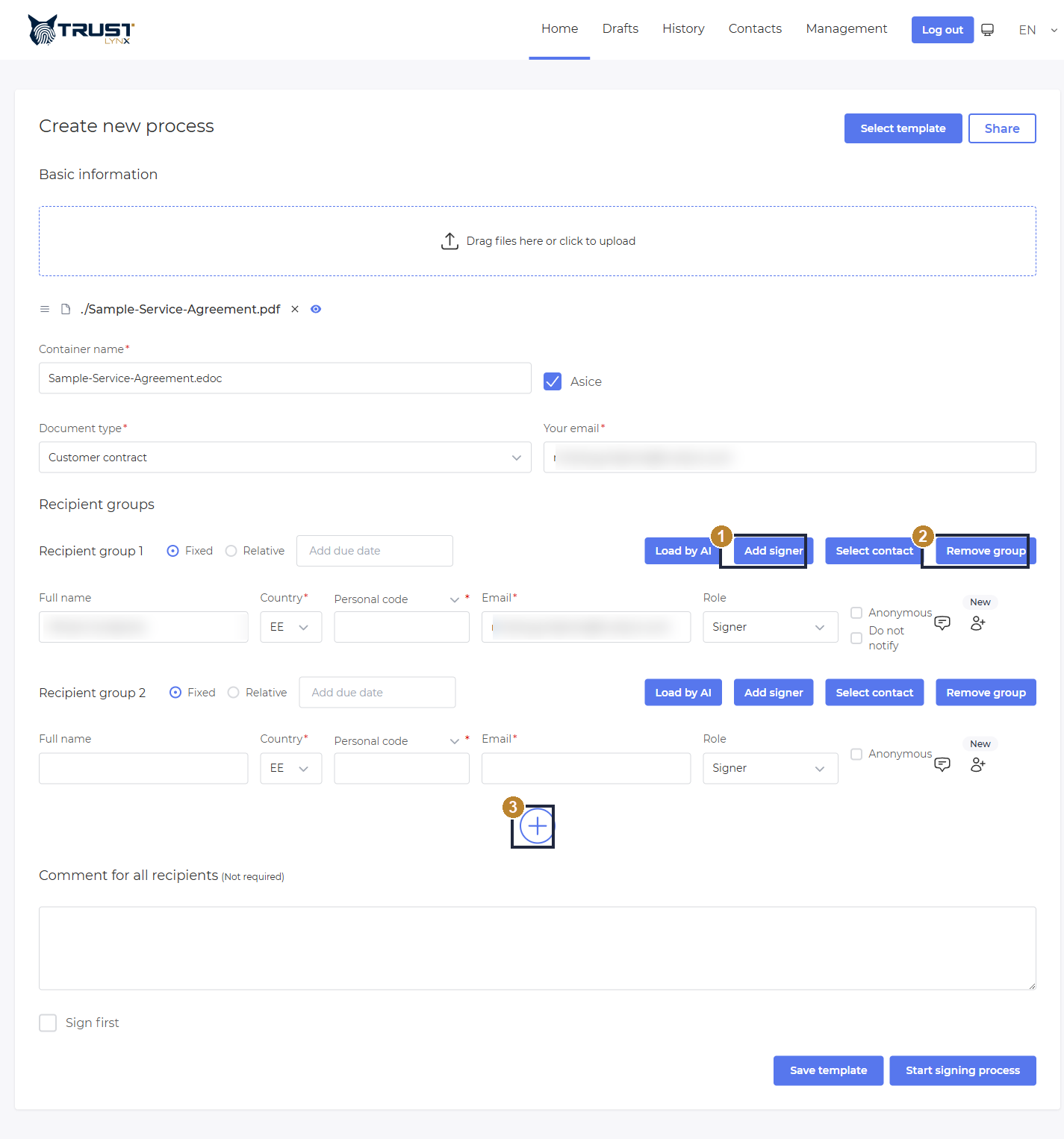
Two recipient groups = sequential signing (Group 1 signs, then Group 2).
- Add signer - add another recipient to the same group (they sign in parallel).
- Remove group - delete this recipient group.
- + (add another recipient group) - adds the next group, which signs after the previous one.
Due date
Section titled “Due date”Each group can have a due date. Choose Fixed (a calendar date/time) or Relative (a number of days), then set the value in the Add due date field.
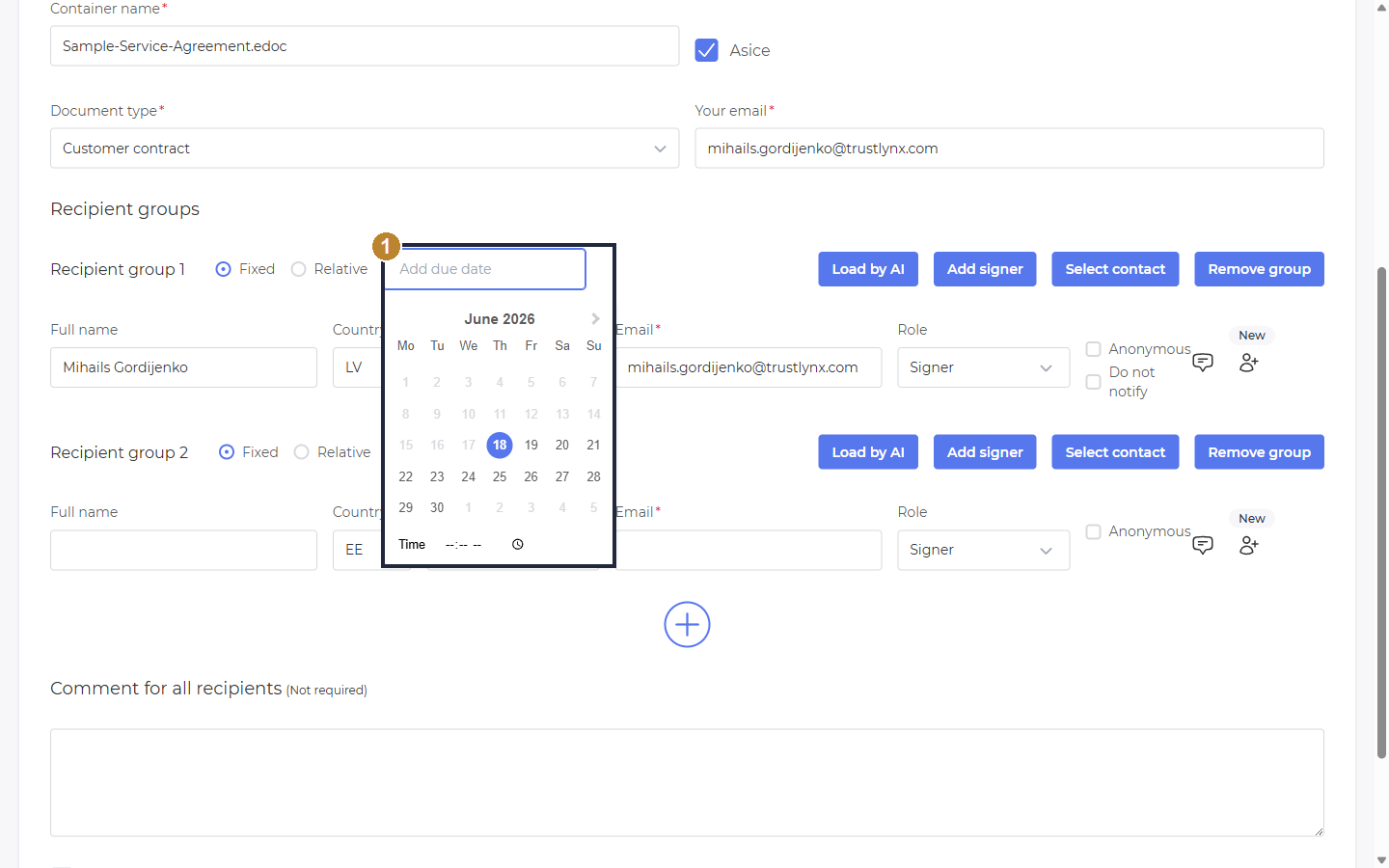
Set an optional deadline per recipient group (Fixed date or Relative number of days).
- The due‑date picker - pick a date (and time). Leave empty for no deadline.
Comments
Section titled “Comments”- Comment for all recipients - an optional message shown to every recipient (the large text box near the bottom of the form).
- Per‑recipient comment - click the speech‑bubble icon next to a recipient to add a comment just for that person, and to set the E‑Mail language of their invitation.
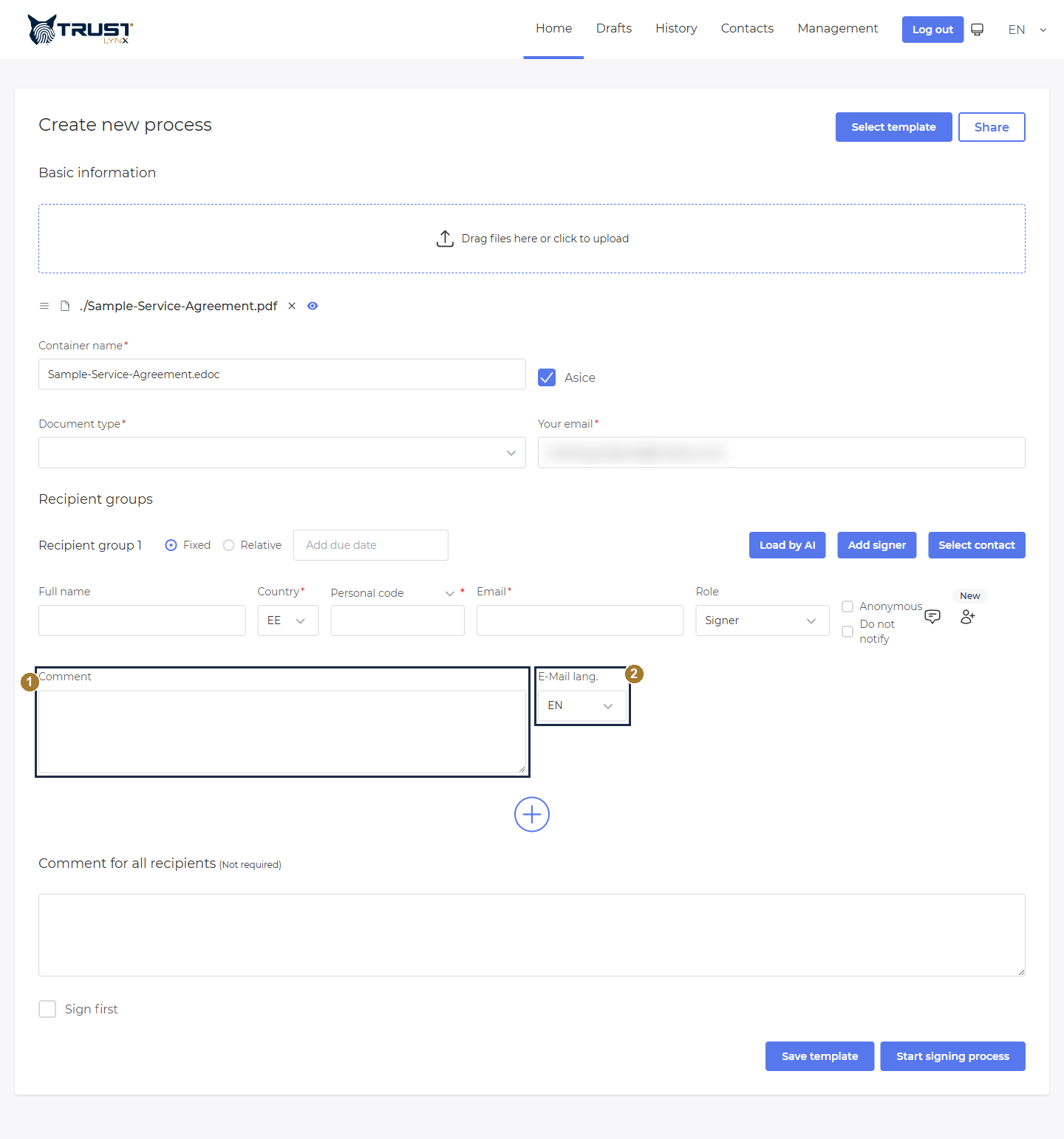
A per‑recipient comment with its own E‑Mail language.
- Comment - text shown only to this recipient.
- E‑Mail lang. - the language of this recipient’s email invitation.
Sign First - the initiator signs first
Section titled “Sign First - the initiator signs first”Tick Sign first (bottom‑left of the form) when you, the initiator, must sign the document first, before any recipient is invited.
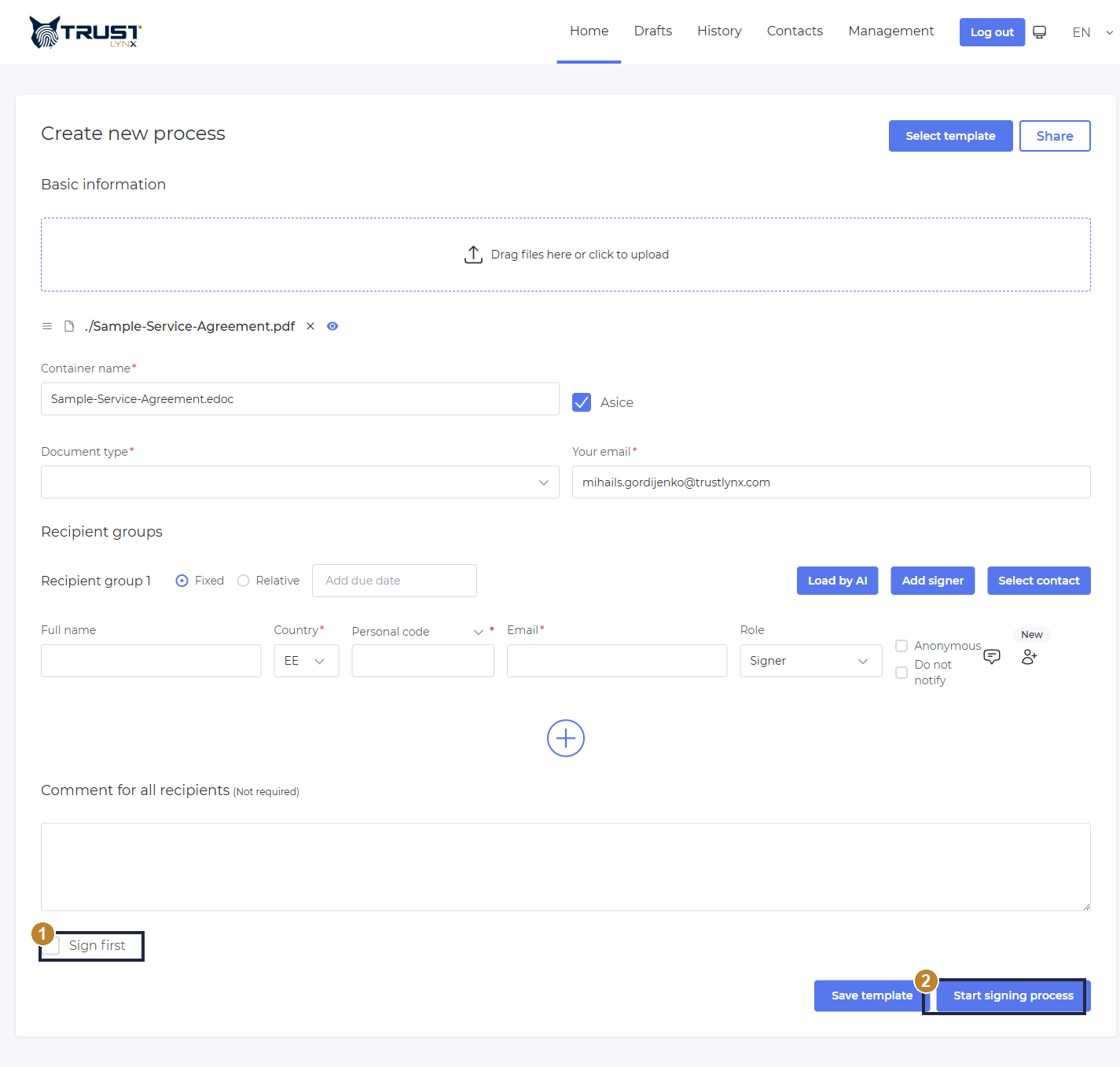
Enable Sign first to sign the document yourself before recipients are invited.
- Sign first - when ticked, after you start the process you are immediately taken to the signing screen to sign first (the same Smart‑ID signing flow described in section 7). Only after your signature are the recipients notified.
- Start signing process - launches the process.
- Without Sign first: recipients are invited immediately when you start the process.
- With Sign first: you sign first → then the recipients are invited.
Start the process
Section titled “Start the process”Click Start signing process. SignBox creates the process and sends invitations.
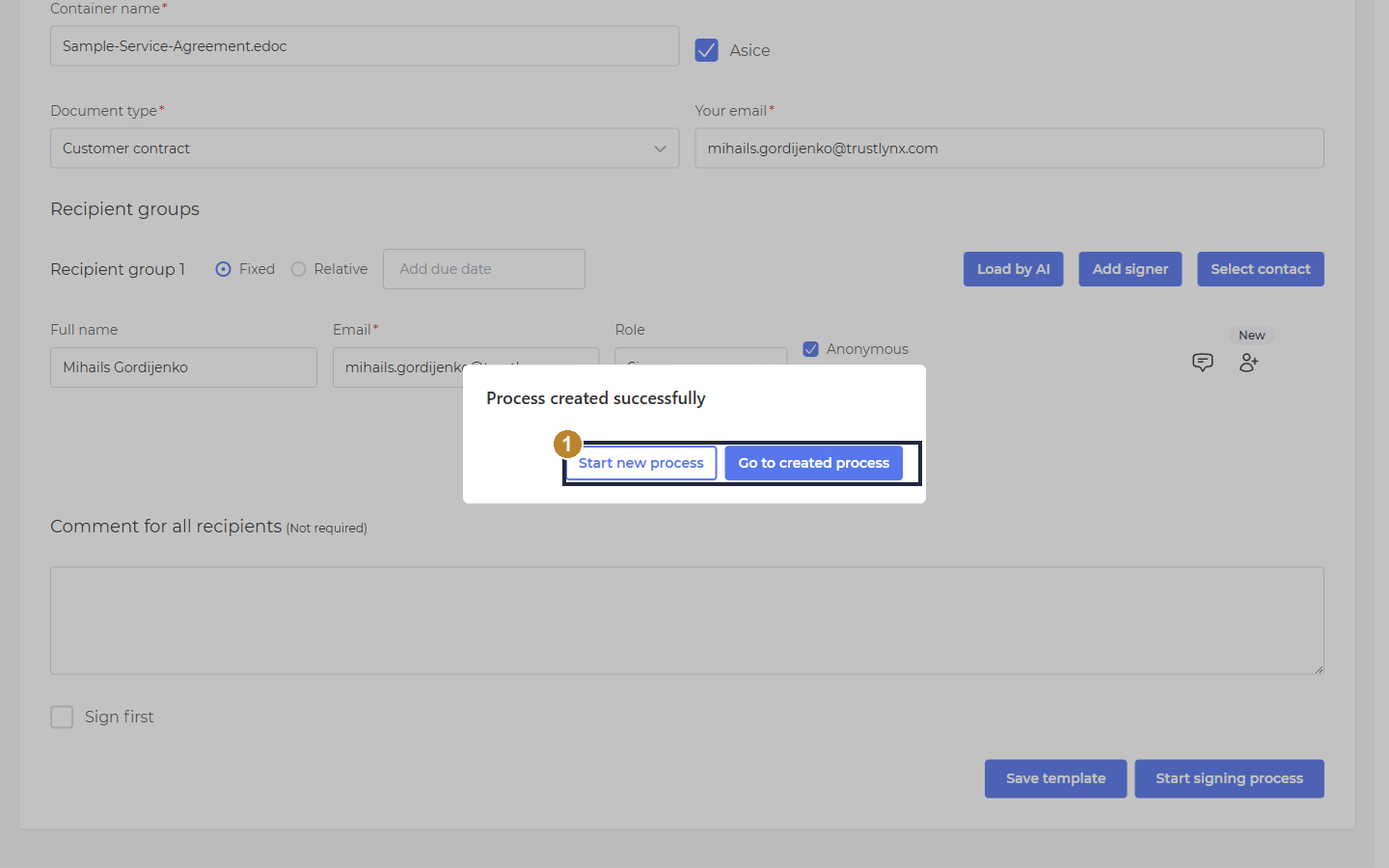
Confirmation that the process was created.
- Go to created process - open the new process to track it or to sign it yourself.
Prefer to finish later? Use the form’s Save template (to reuse the setup) - see section 5 - or open the Drafts tab to work with unstarted processes (see 8.3).