

Templates & Contacts
Templates
Section titled “Templates”Templates save a whole process setup (document type, recipients, roles, comments…) so you can reuse it for recurring workflows.
- Save a template: click Save template on the create‑process form, give it a Name, and choose a Scope.
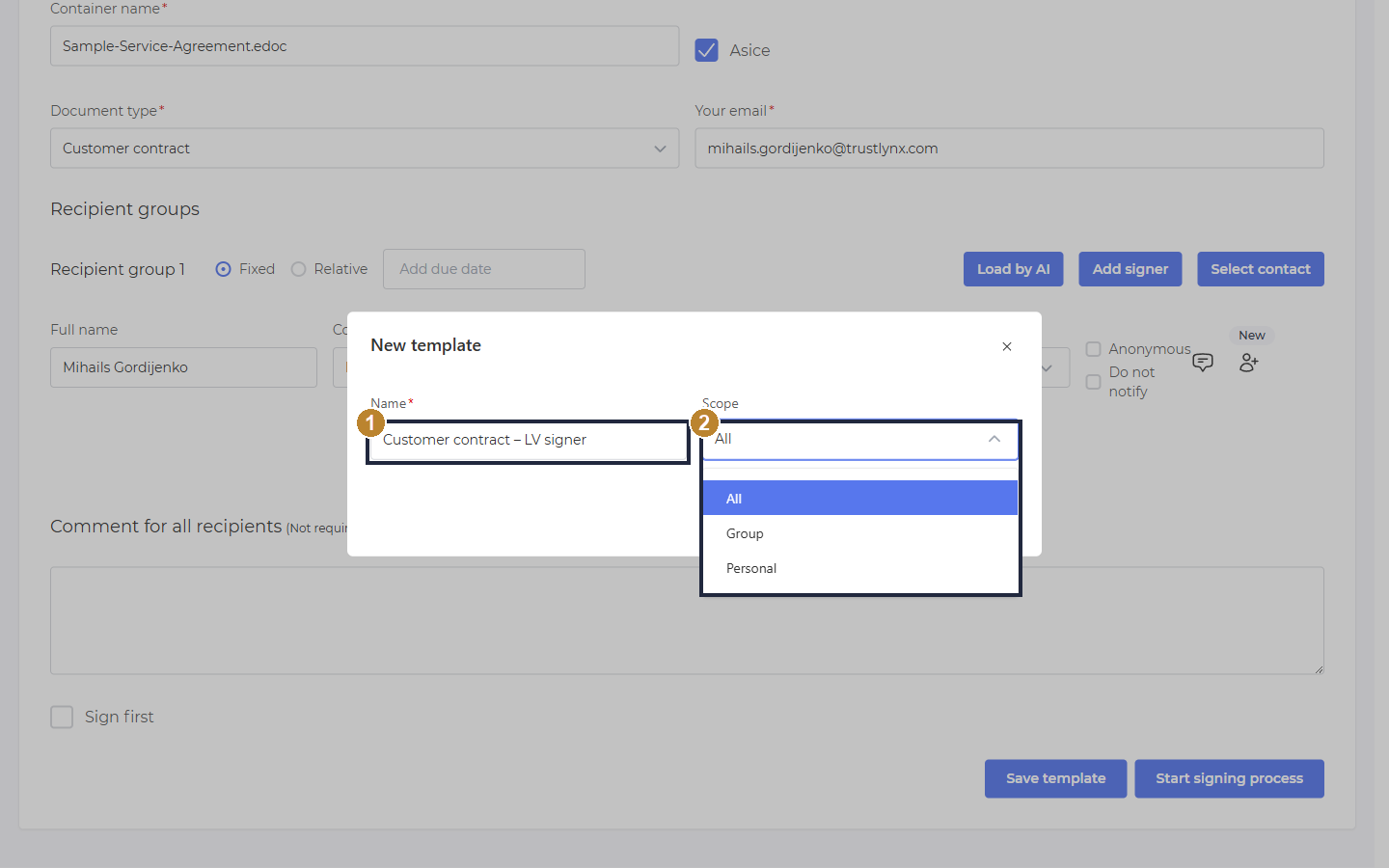
Saving a template - name it and choose who can use it.
- Name - the template name.
- Scope - Personal (only you), Group (your team), or All (everyone).
- Use a template: click Select template (top of the create‑process form), search/filter by name and scope, then pick a template to pre‑fill the form.
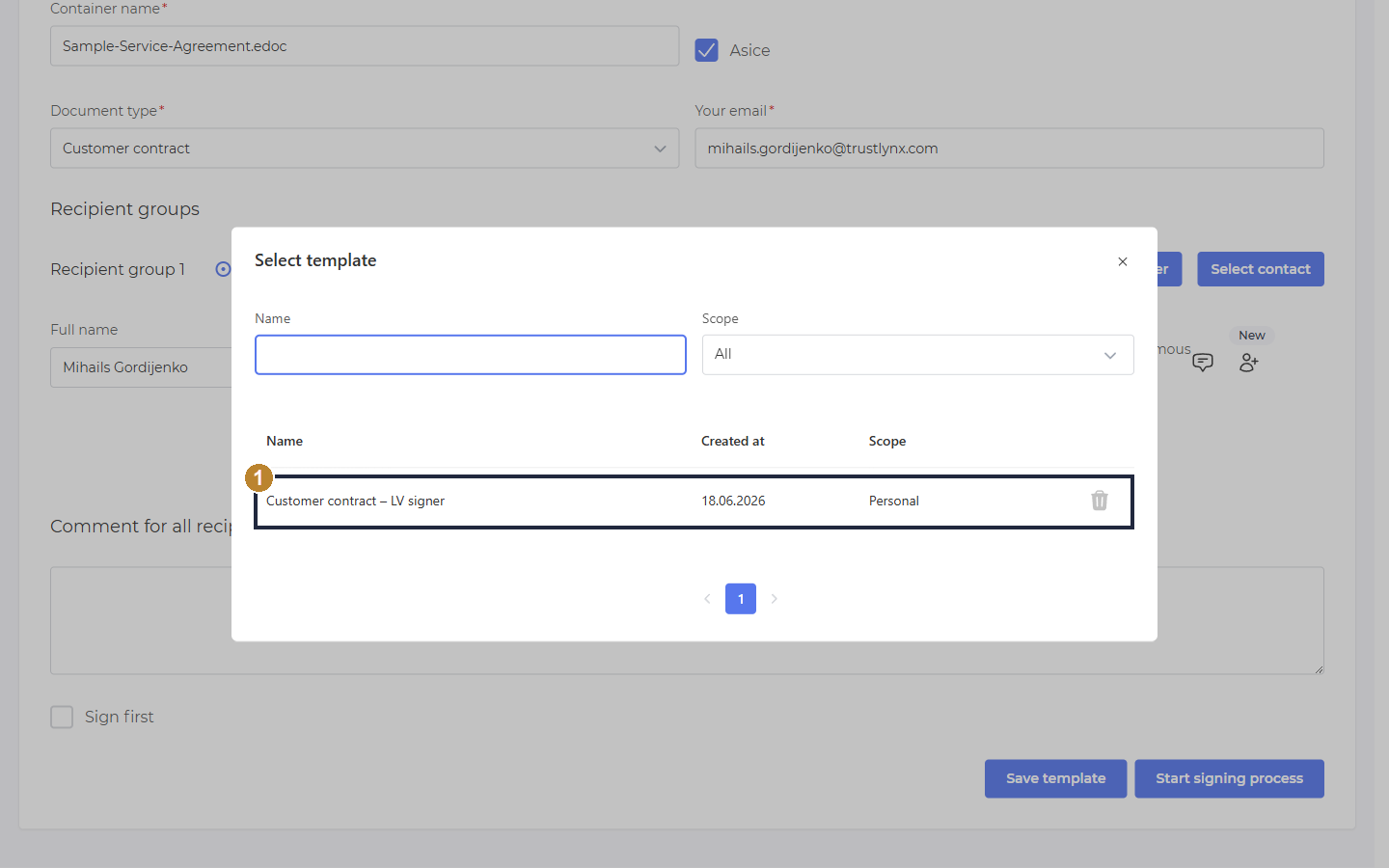
Loading a saved template pre‑fills the create‑process form.
- Saved template row - click it to load it; the trash icon deletes it.
Contacts
Section titled “Contacts”Contacts are reusable recipients. On the create‑process form, Select contact lets you pick a saved contact instead of typing their details. Manage the list from the Contacts tab.
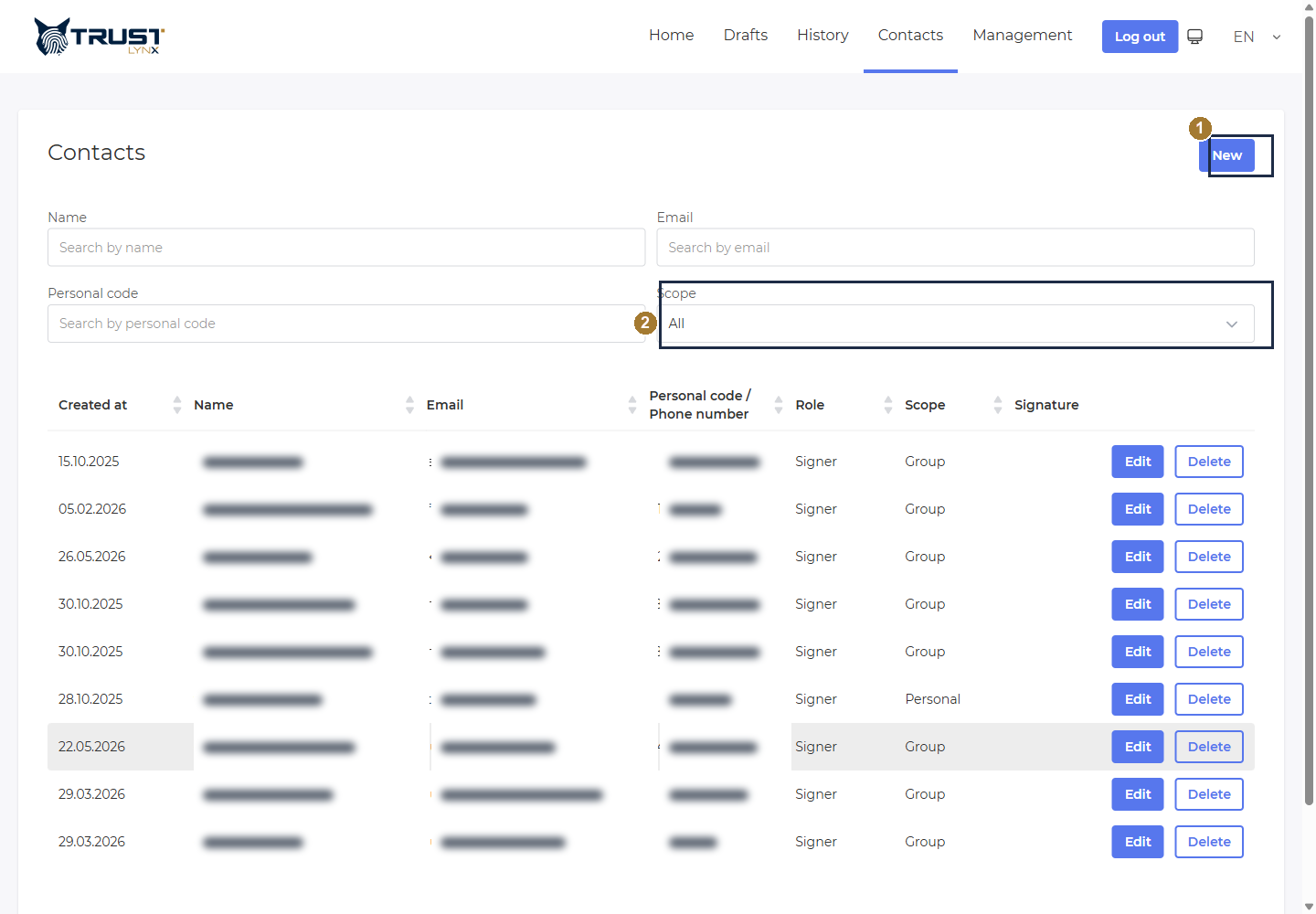
The Contacts directory - reusable recipients.
- New - add a contact (name, email, personal code / phone, role, scope, optional signature).
- Filters - search by name, email, personal code, and by Scope (Personal / Group / All).
In the screenshot the Name, Email and Personal‑code columns are masked for privacy; in the product they show the contact’s real details.