

Tracking processes, statuses, drafts & visibility
History
Section titled “History”The History tab lists your processes. Filter by container name, initiator, status, date period, and document type. The Status column shows each process’s state and the signed/total count (e.g. 0/1, 1/1).
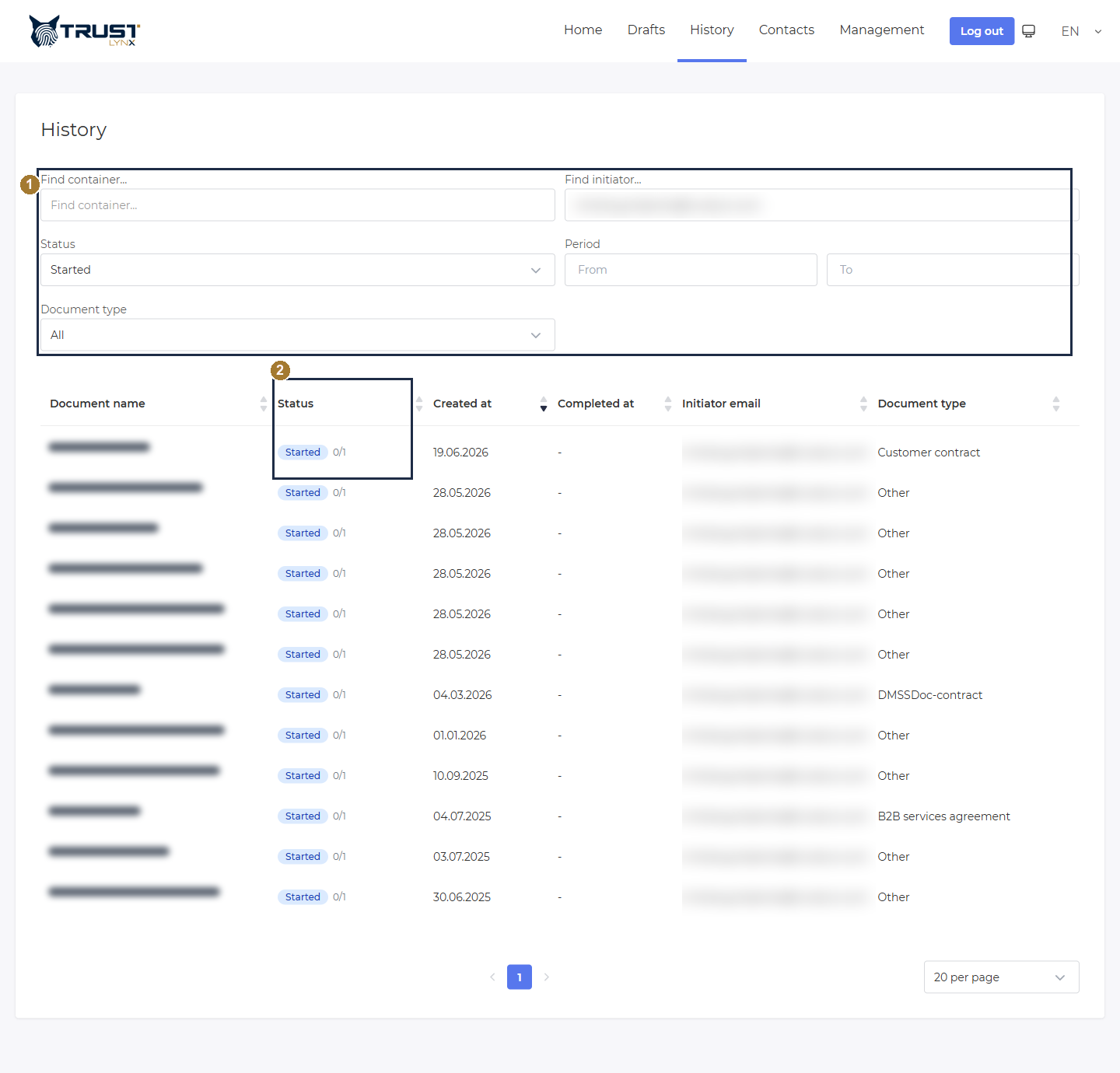
History - filter and track all your processes.
- Filters - Find container, Find initiator, Status, Period, Document type.
- Status column - the live status of each process (with the signed/total counter).
Click any row to open the process details (container ID, content preview/download, validation, signatures, recipient groups and their statuses).
Statuses & the Completed vs Finished distinction
Section titled “Statuses & the Completed vs Finished distinction”Open the Status filter to see all process states:
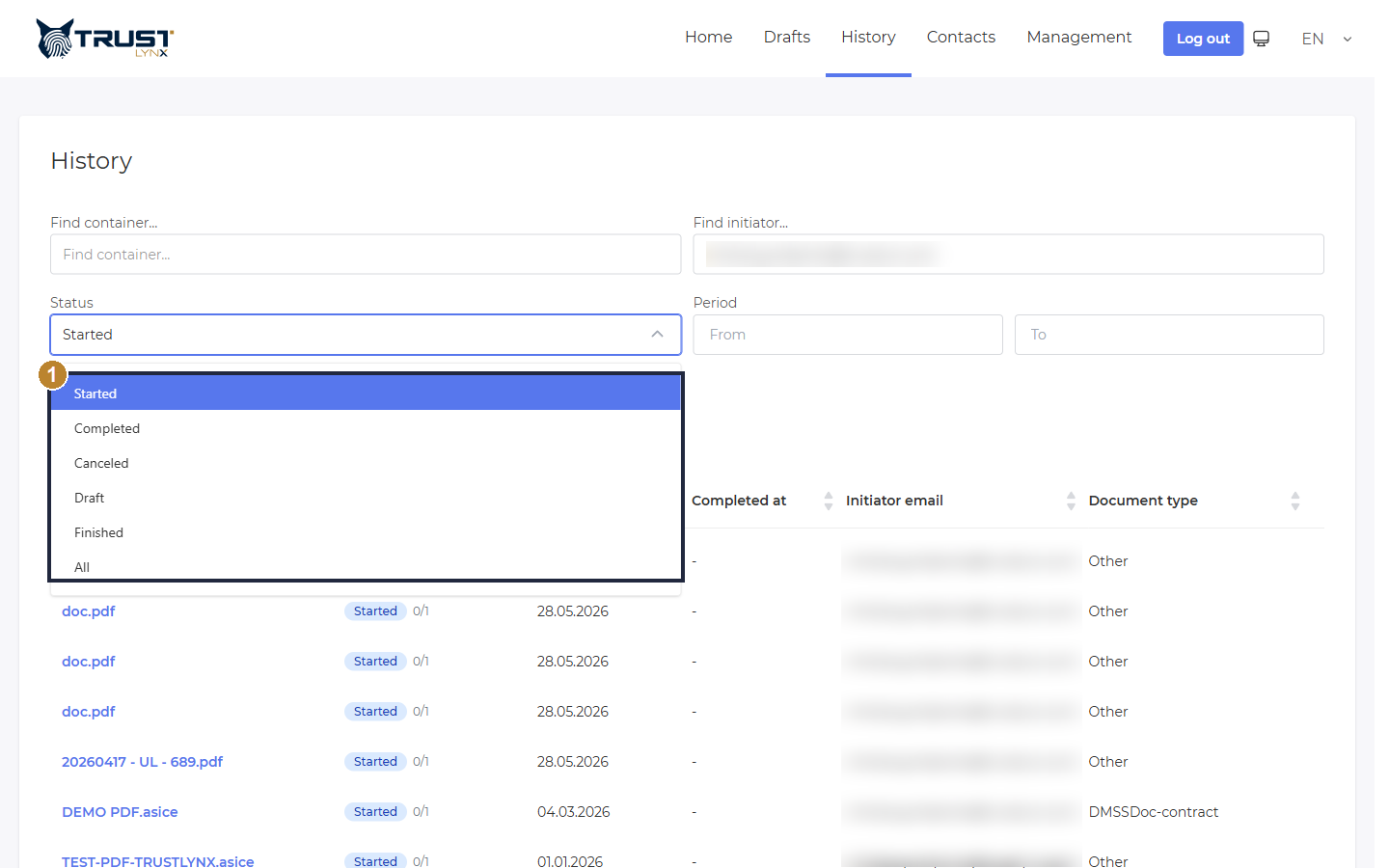
All process statuses you can filter by.
- Statuses - Started, Completed, Canceled, Draft, Finished, All (plus Pending, Signed, Approved and E‑Sealed used internally).
Status meanings
| Status | Meaning |
|---|---|
| Draft | Saved but not started - no invitations sent yet. |
| Started | In progress - waiting for one or more recipients to act. |
| Completed | All recipients have signed - every required signature has been collected. |
| Finished | The process has been closed / finalised (terminal) - the signed document is final. |
| Canceled | The process was cancelled. |
Completed vs Finished - how the process view differs. Inside a process these two operate at different levels:
- a recipient group shows Completed once everyone in that group has signed;
- the whole process shows Finished once it has been closed/finalised.
The screenshot below is a Finished process. Note the three different badges and the Complete action:
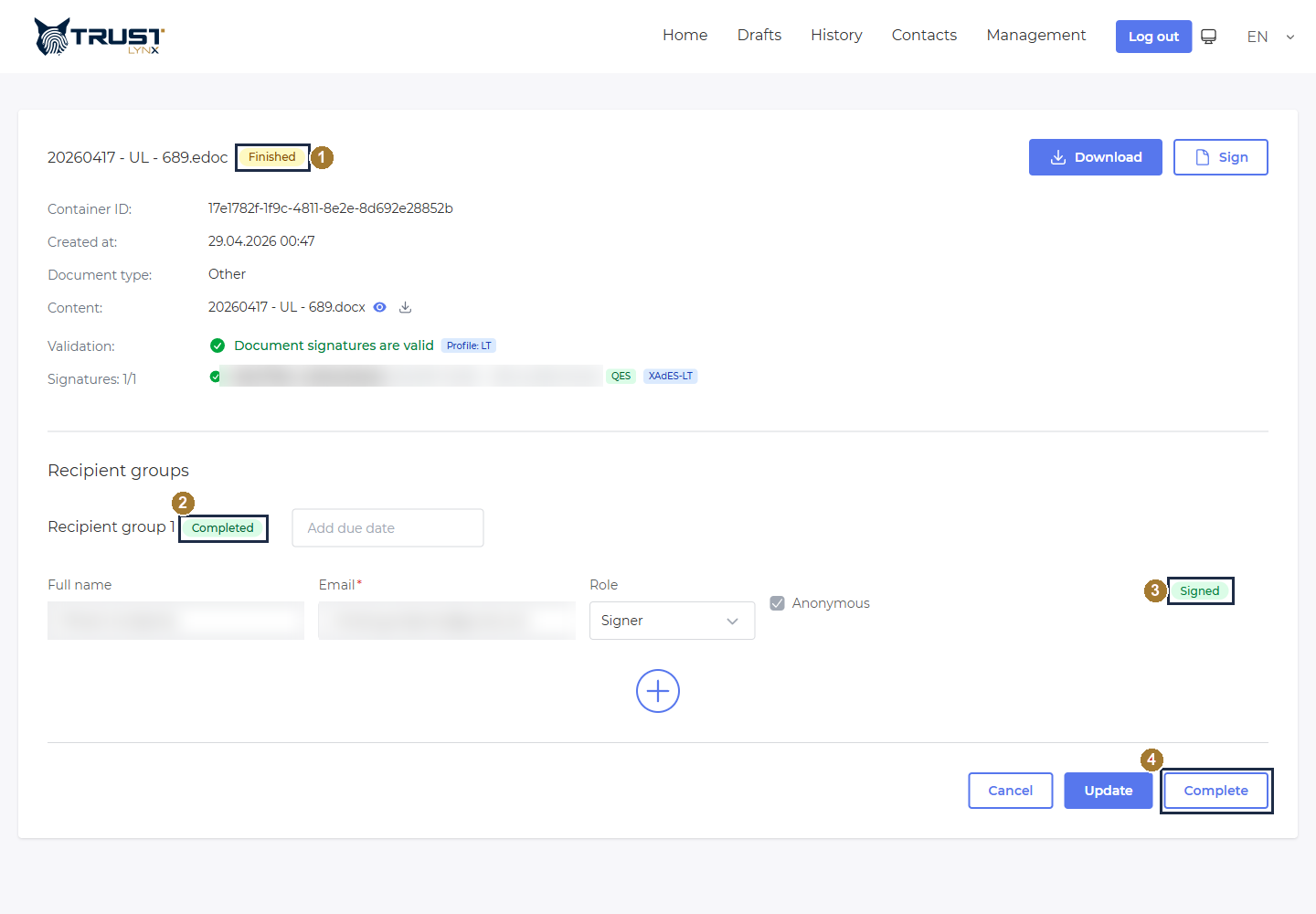
A finished process - process = Finished, group = Completed, recipient = Signed.
- Process status = Finished - the process itself is closed/finalised.
- Recipient group = Completed - every signer in this group has signed.
- Recipient = Signed - this individual recipient has signed (with QES / XAdES‑LT and a valid‑signatures check shown above).
- Complete - the initiator can manually Complete (close) a process. “This action cannot be undone.”
So in practice: Completed = all signatures collected; Finished = the process is closed and the validated, signed document is final and downloadable.
Drafts
Section titled “Drafts”The Drafts tab is the History view pre‑filtered to Status: Draft. Drafts are processes that have been prepared but not yet started, so no invitations have been sent. From here you can reopen a draft to continue editing it, start it, or delete it.
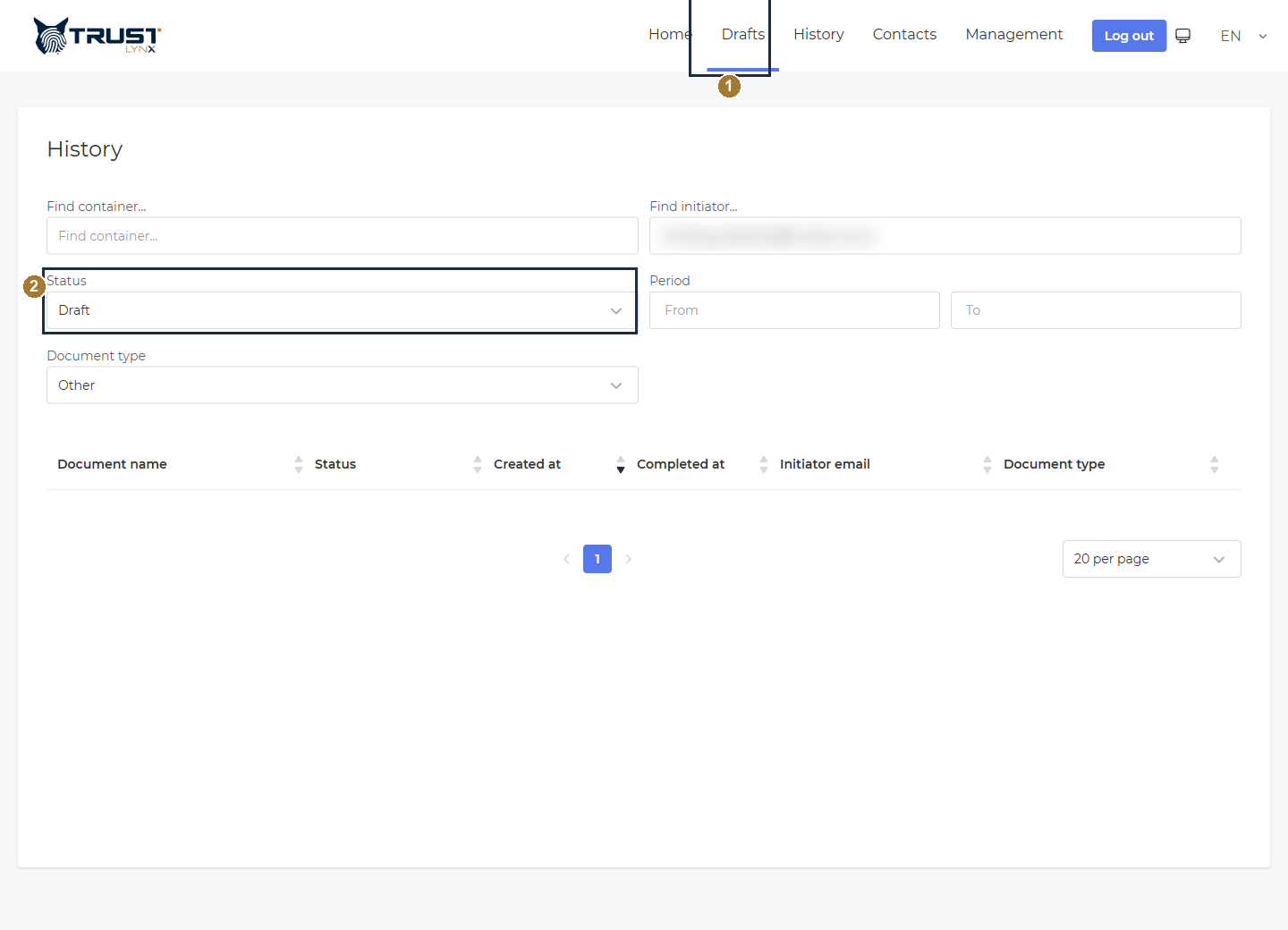
The Drafts tab lists processes saved but not yet started.
- Drafts tab - opens History filtered to Draft status.
- Status = Draft - only draft (unstarted) processes are shown.
Process visibility (scope)
Section titled “Process visibility (scope)”Who can see a process, contact or template is governed by scope and owner group:
- Personal - visible only to the owner.
- Group / Owner group - visible to the owner’s team.
- All / Global - visible to everyone.
You set the scope when you save a template or contact (Personal / Group / All), and each document profile and process belongs to an owner group. The History and Contacts lists show the items you are allowed to see based on these scopes.