Signing a document on the external portal
Signing always happens on the external portal (esign.trustlynx.com), where the signer
authenticates with their e‑ID and signs. This section shows the Smart‑ID flow end‑to‑end.
How a signer reaches the portal
Section titled “How a signer reaches the portal”A recipient reaches the signing portal in one of two ways:
- By email invitation - they click the link in the “invitation to sign” email and land on the external portal’s authentication screen (described in 7.2).
- From the internal portal - the initiator (or a signer who is also a SignBox user) opens the process and clicks Sign, which redirects to the external signing portal.
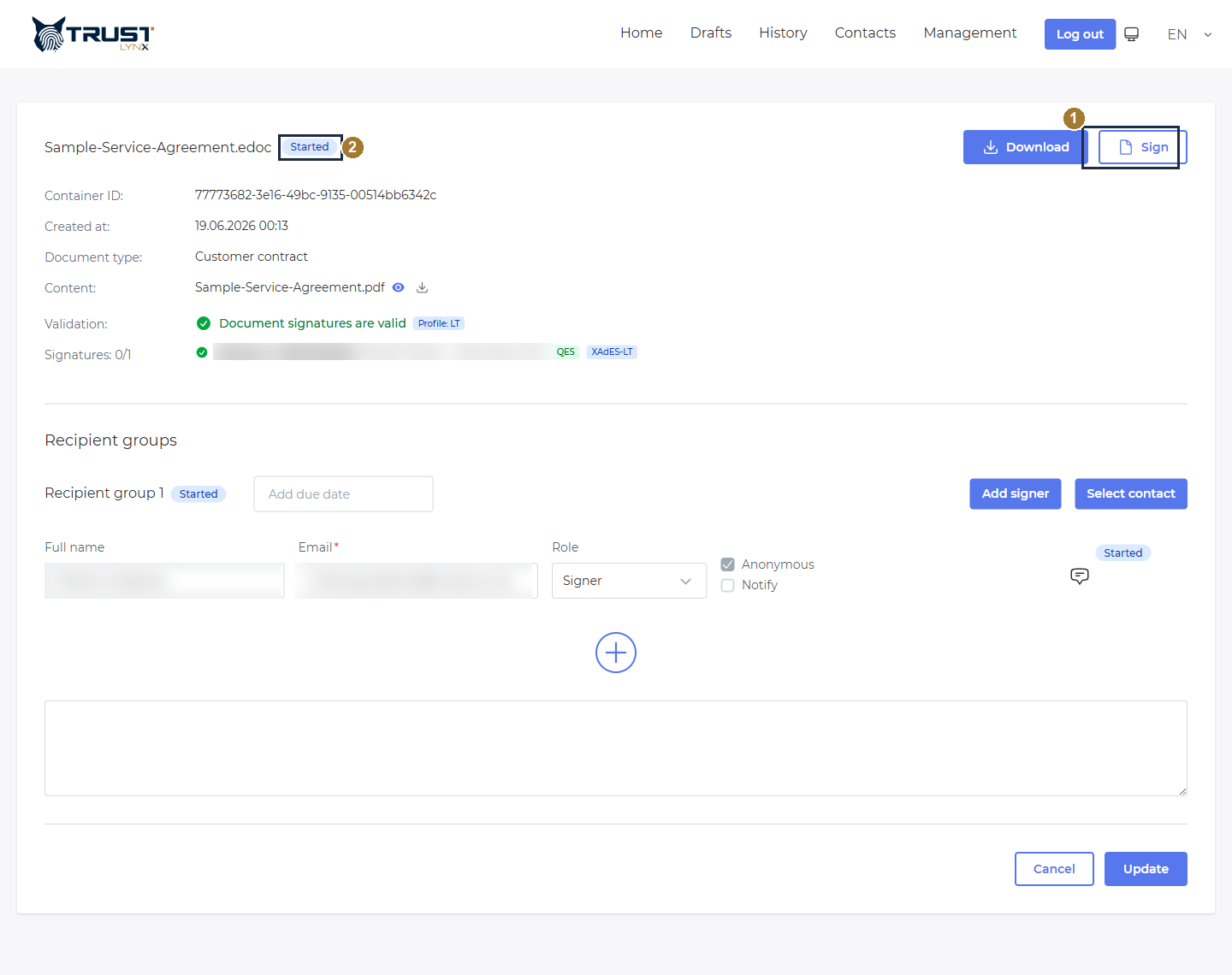
Opening a process - Sign takes you to the external signing portal.
- Sign - start signing this document on the external portal.
- Status badge - the current process status (here, Started).
Smart‑ID login (external portal)
Section titled “Smart‑ID login (external portal)”When a signer opens the portal fresh (via the email link), they must authenticate first. The portal shows “Please Authorize” with a row of country tabs; under each country are the available e‑ID methods.
The external portal authentication screen - pick your country, then a method.
- Country tabs - EU, EE, LV, LT, PL, CA. Pick the one that matches your e‑ID.
Select your country (e.g. EE) to reveal that country’s methods, then choose Smart‑ID:
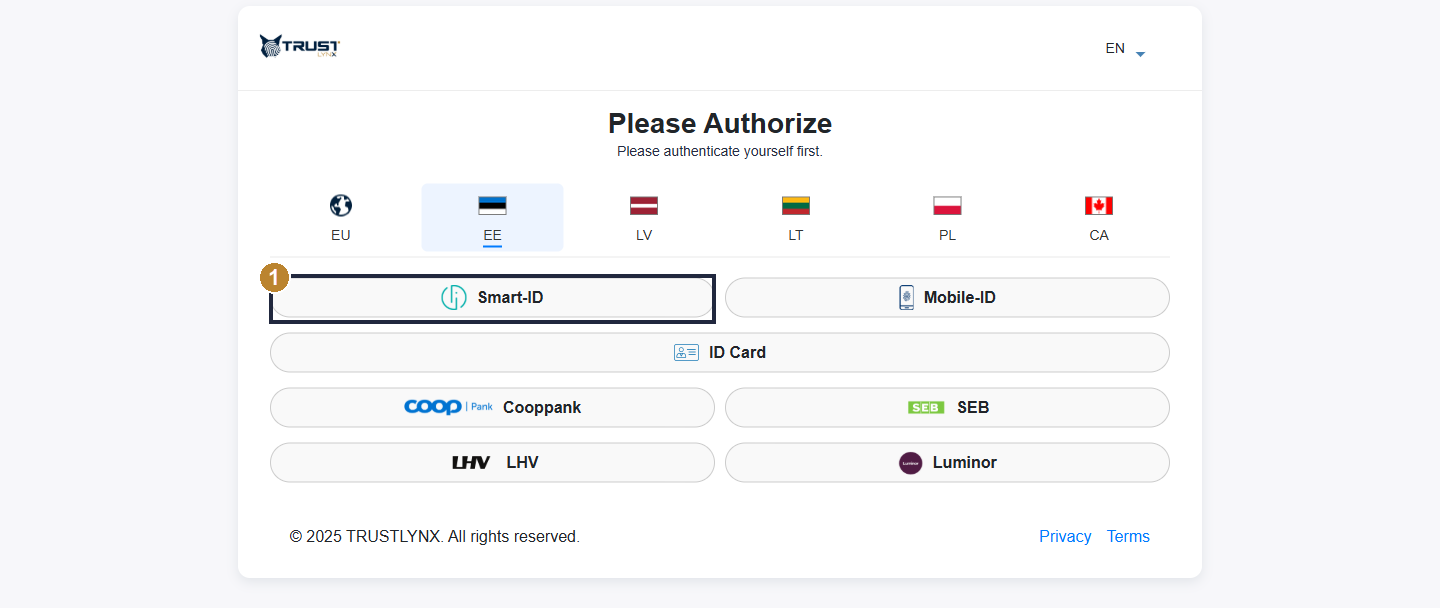
Each country shows its own methods; choose Smart‑ID.
- Smart‑ID - the method this guide uses.
Smart‑ID then shows a QR code and a Personal ID‑code field. Either scan the QR with the Smart‑ID app, or type your personal code and click Authenticate:
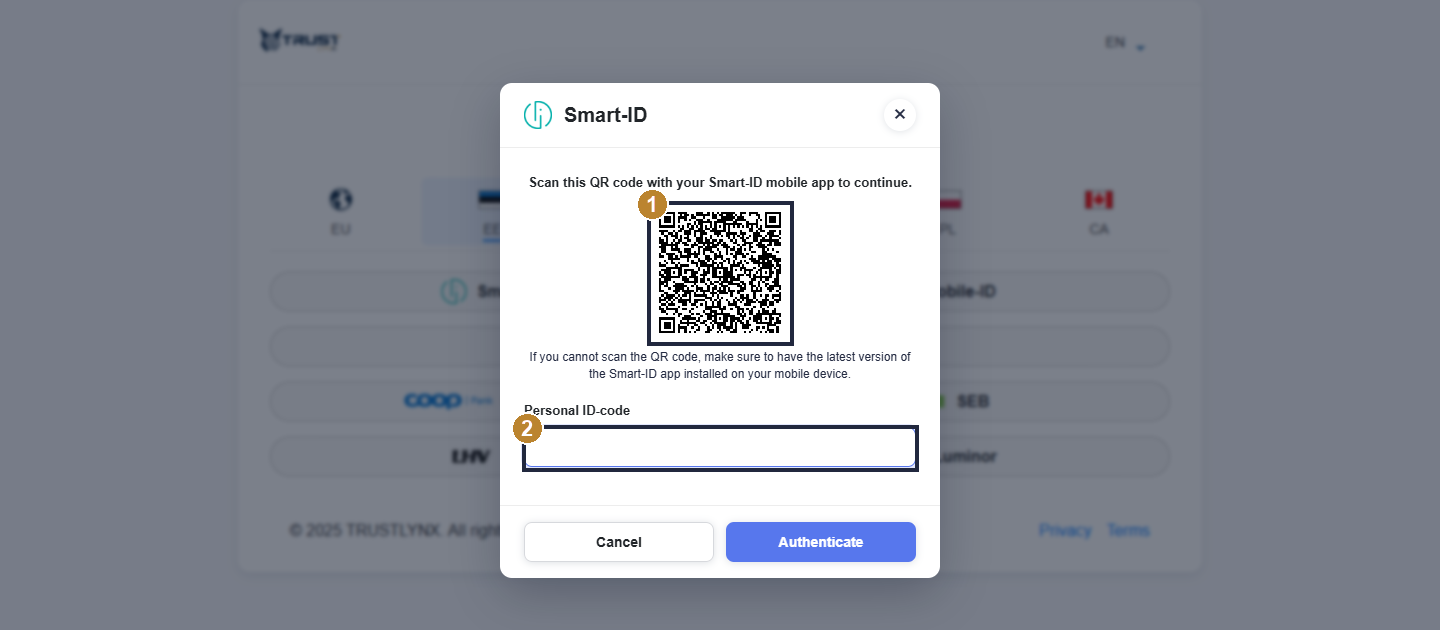
Authenticate with Smart‑ID - scan the QR or enter your personal code.
- QR code - scan it with the Smart‑ID app on your phone.
- Personal ID‑code - alternatively, type your code and click Authenticate.
You then confirm on your phone: open the Smart‑ID app, check that the code matches, and enter your PIN1. You are now logged in and can open the document to sign.
Smart‑ID signing (external portal)
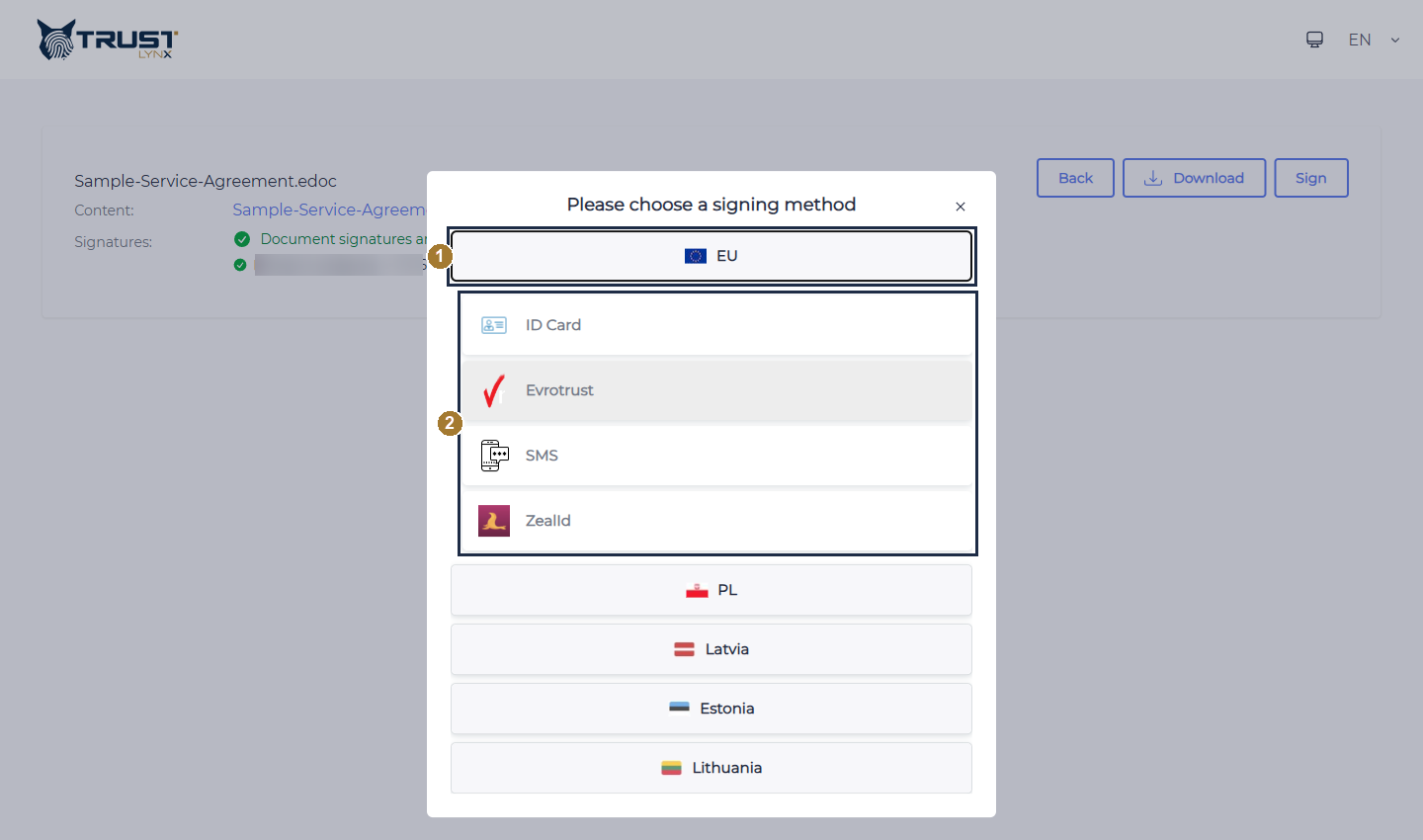
Section titled “Smart‑ID signing (external portal)”On the document signing screen, click Sign (top‑right). The portal asks you to choose a signing method by country:
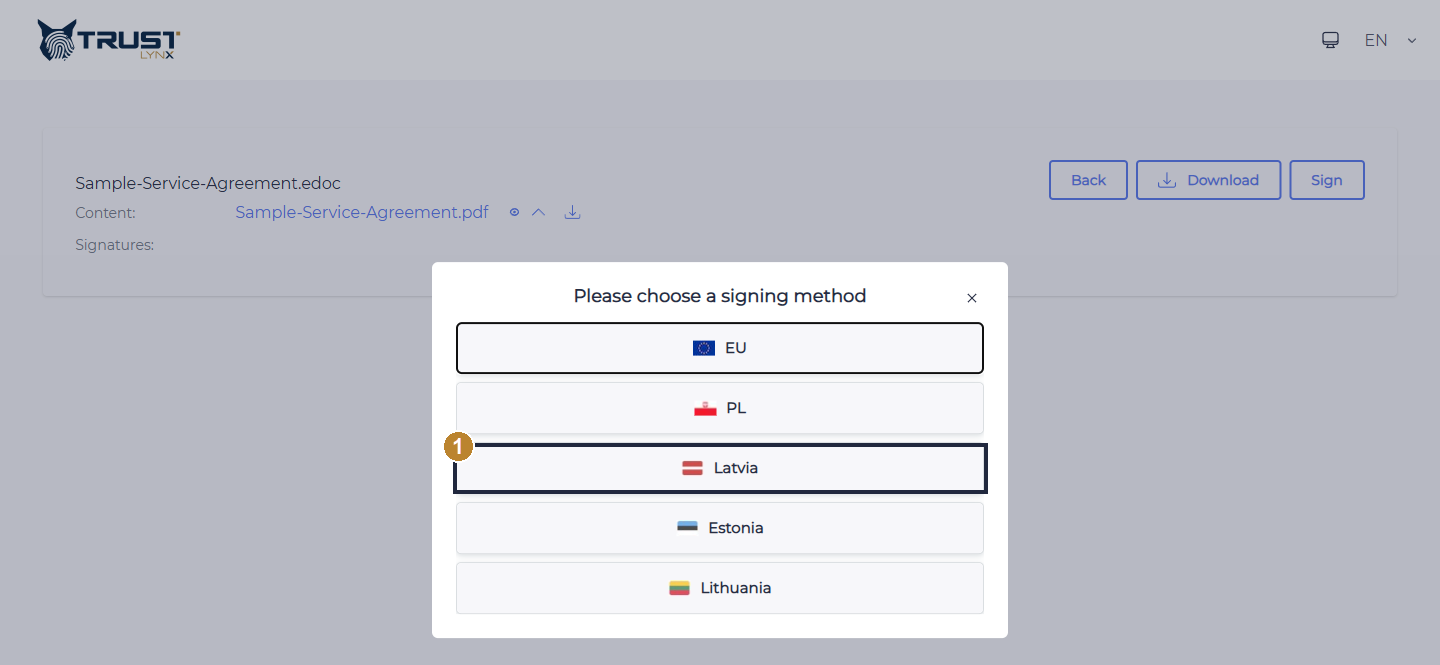
Choose the country whose e‑ID you will sign with.
- Country - EU / PL / Latvia / Estonia / Lithuania (and others). Pick yours.
Latvia expands to show its signing methods; choose Smart‑ID:
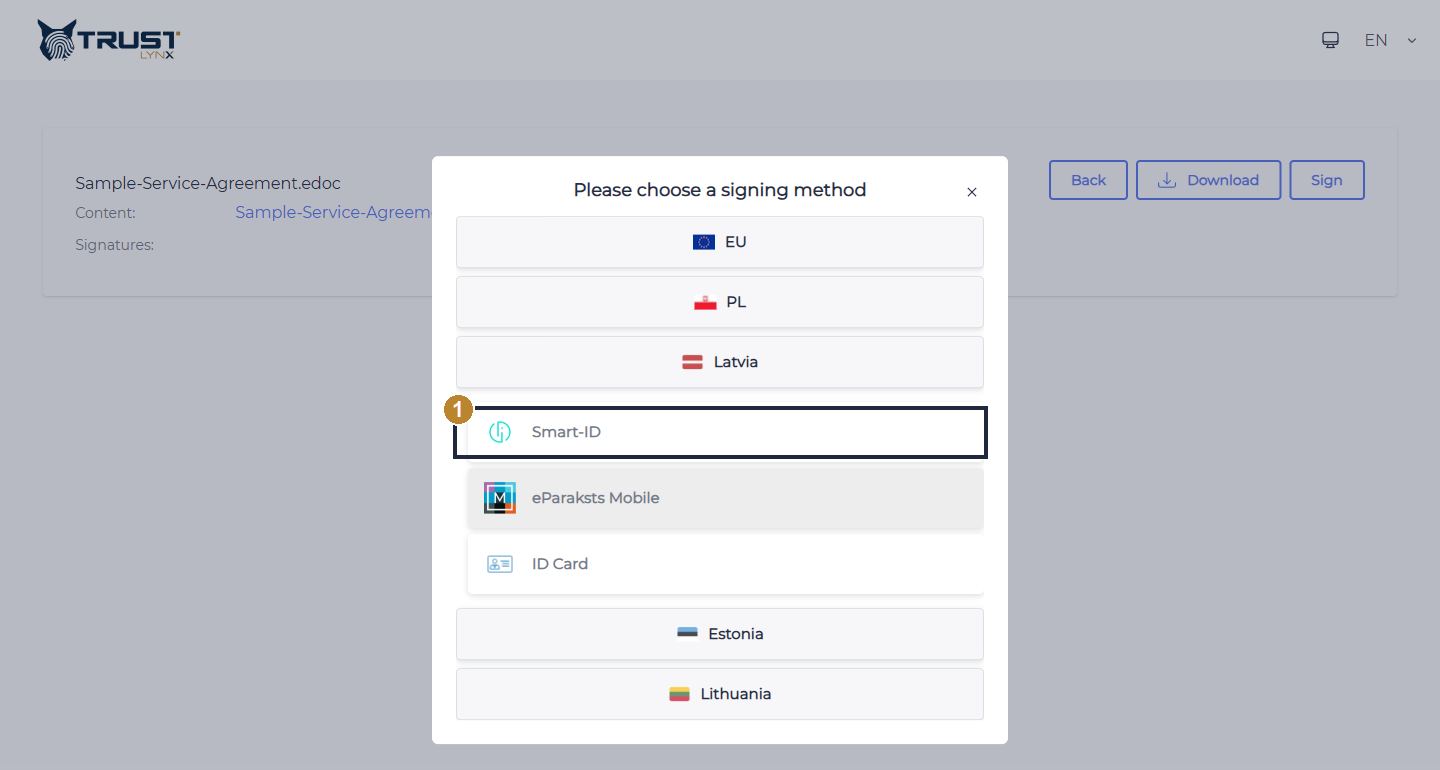
Latvia’s signing methods - Smart‑ID, eParaksts Mobile, ID Card.
- Smart‑ID - the signing method.
The Smart‑ID dialog appears. You can enter your personal code and click Send data, or click Scan QR code to sign by scanning instead:
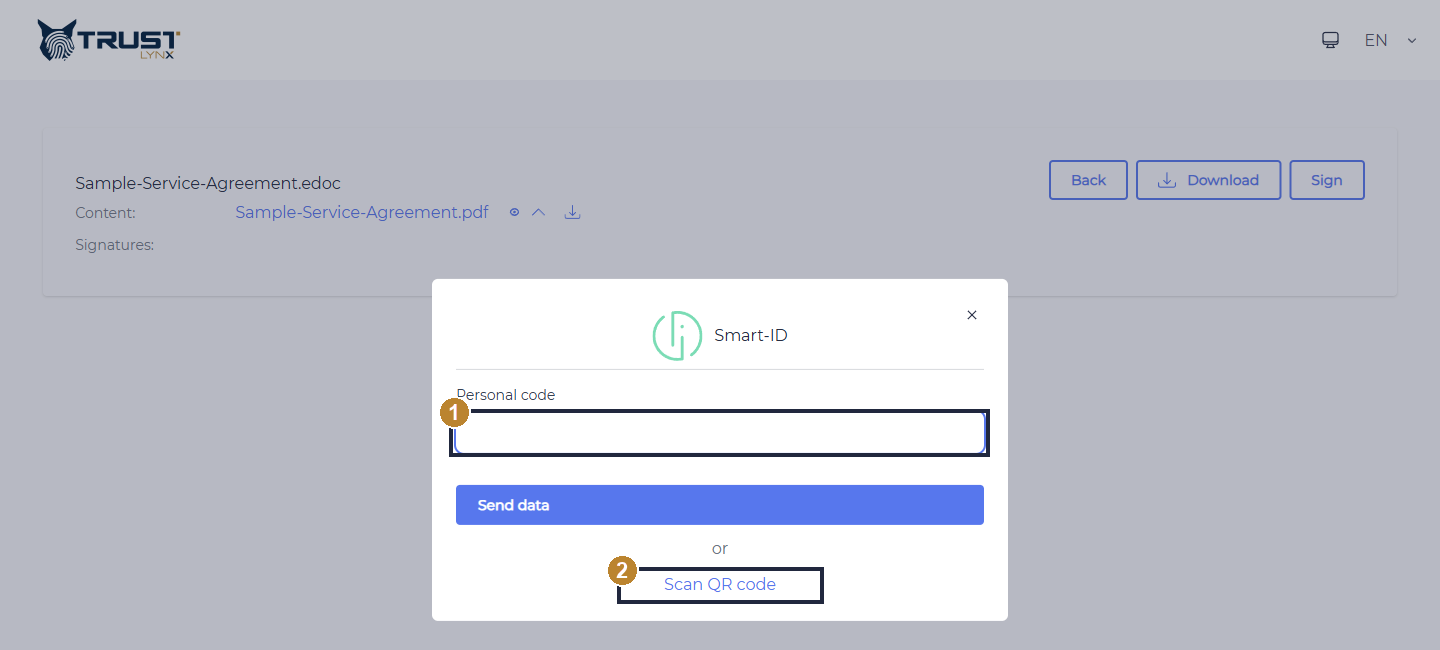
Start the signature - enter your personal code, or use Scan QR code.
- Personal code + Send data - sends the signing request to your phone.
- Scan QR code - sign by scanning the QR with the Smart‑ID app instead of typing a code.
If you choose the QR option, a QR code with a short timer is shown - scan it with the Smart‑ID app:
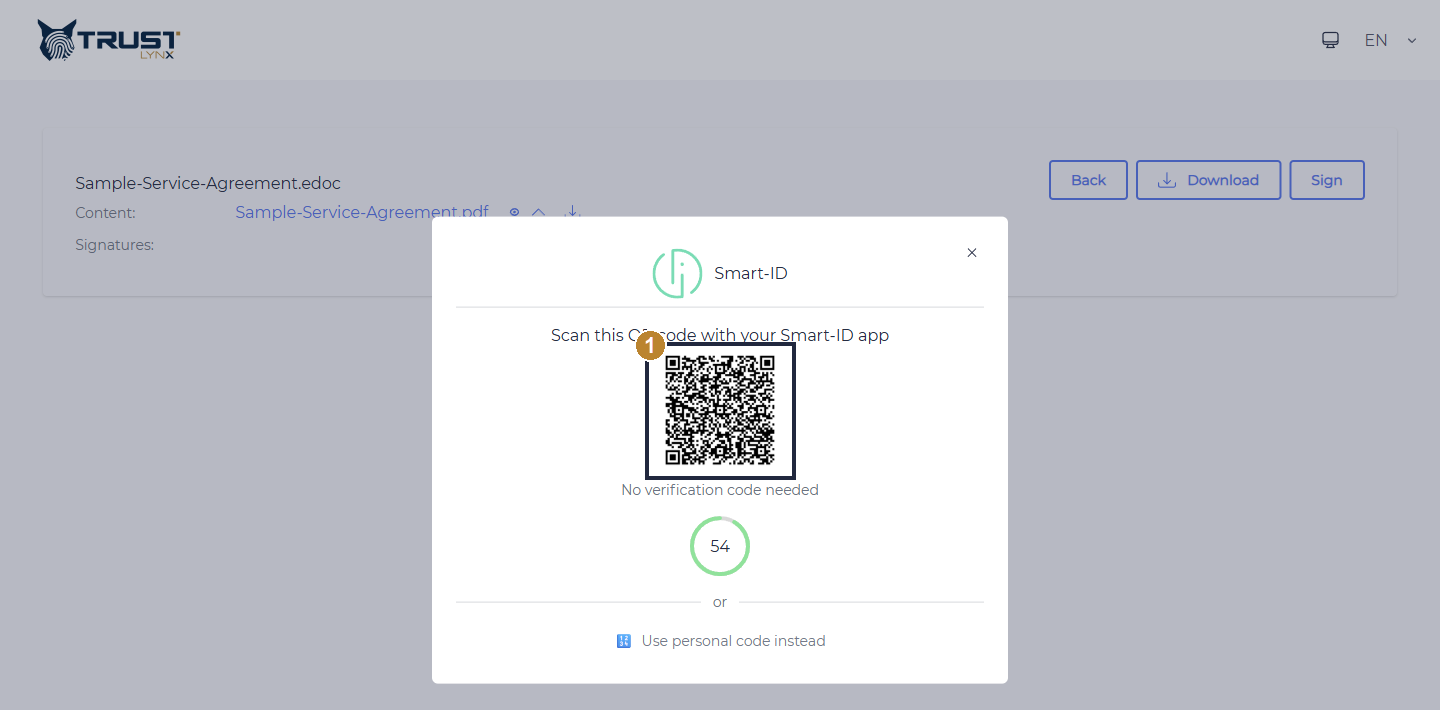
Scan this QR with the Smart‑ID app (it refreshes on a timer).
- QR code - scan it with the Smart‑ID app.
A verification code then appears on screen. On your phone, open the Smart‑ID app, check that the code shown there matches the one on screen, and enter your PIN2 to sign:
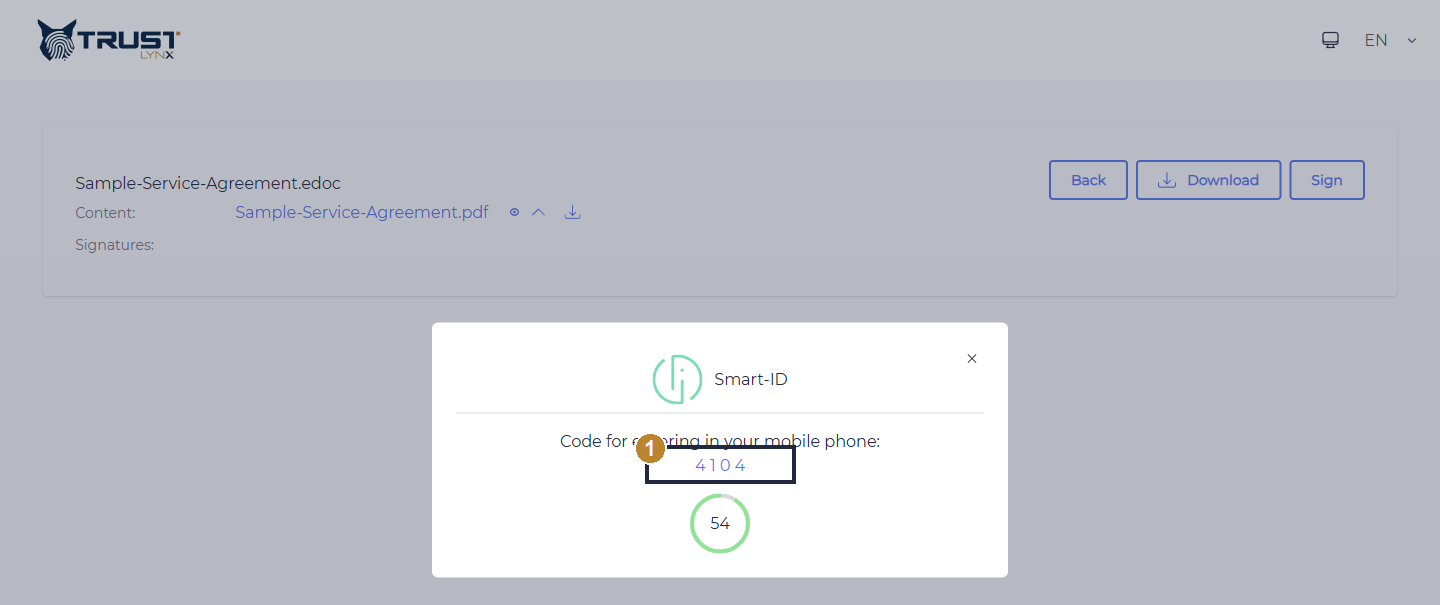
Match this code in the Smart‑ID app, then enter PIN2 on your phone to sign.
- Verification code - confirm this exact number in the Smart‑ID app, then enter PIN2.
The signed result
Section titled “The signed result”Once you approve on your phone, the document is signed. The portal confirms the signature is valid and shows the signer with the signature level:
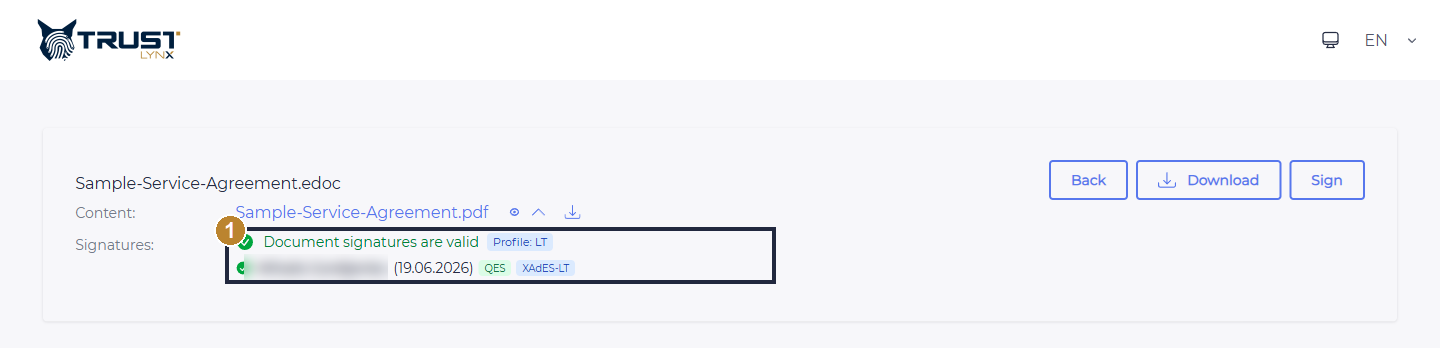
Signature complete - the document signatures are valid.
- Signatures valid - “Document signatures are valid” with Profile: LT, the signer’s name and date, and the QES (Qualified Electronic Signature) and XAdES‑LT badges.
The signed document can be downloaded from the portal (Download) or from the process details in the internal portal.